I have added a second, simpler Atlas Scientific probe (temperature), which defaults to continuously reading the probe values. I have loaded the latest node-red-dashboard 3.6.6 and started to add nodes, one at a time to make sure I don’t get a red-node crash. I’m not seeing either probe’s input via the debug node, and I “should” see the temperature. Can you help me get at least a display of the serial data going via the debug node? I am also not seeing an error state in the debug window as I did when using node-red-dashboard version 3.6.5.

Hi @rsheffield99,
Here is how I configured my node red flow for my conductivity sensor in the node red extension (see attached).
On the right of the flow, is how I can control what data parameters are enabled on the conductivity sensor (EC for conductivity, TDS for total dissolved solids, S for salinity, SG for specific gravity). To enable a specific parameter (i.e. EC) then you use the character “1,” and to deactivate or exclude that parameter, then you use the character “0.” More information on these commands can be found here on page 28.
The other nodes to the left of the flow, such as the MQTT out and the salinity conversion function, are for my specific configuration which may not apply to your use-case. Although if you want to display your data while piloting, I would recommend configuring a dashboard which can be viewed in an iFrame in Cockpit.

To exclude the *OV, characters, I wrote the following Data Management node to filter out the unwanted data (see attached).

As far as configuring the serial-in node, this is how I configured mine (see attached). It looks like you have a lot of the same settings. But part of the problem, might be your serial identifier. Maybe try using your serial ID instead of the FTDI ID.

Also, you mentioned in a previous post that you had configured the AtlasScientific sensors with the I2C mode instead of the UART mode. In Node Red, I don’t think you are able to use the serial in and out nodes when using an I2C configured device. With my AtlasScientific conductivity sensor, I configured it under the UART mode, and it has worked out well for me so far. Additionally, I have configured my conductivity sensor outside of the BlueOS docker container on the RPI4. If you’re running your sensors inside the BlueOS docker container under the I2C mode, that may impact some of the operations going on in the background.
In my original integration guide at the top of this thread, I walked through how to configure the sensors under the UART mode. I would recommend going back to my original integration guide and following that, step by step. By doing that, I would also be able to provide better feedback on some of the troubleshooting you might encounter. If you have additional questions, feel free to reach out.
Hope the examples and guidance above helps 
At some point in the near future, I may add to my original sensor integration guide to walk through how to enable local datalogging – including accessing the other telemetry data from the ROV through Mavlink2REST and using MQTT protocol to transmit AtlasScientific sensor data from the onboard Node Red extension to the GCS.
Until then, hope all goes well!
Sydney, Thanks for the clarification. I was following Tony’s example for the Victron USB device to get the FTDI ID. I have swapped to the USBttyX address and am getting output now. The probes were calibrated late last year, so that should be still good. I did the libftdi-dev package install as you suggested and changed the udev rule (but only for the conductivity sensor so far). Looks like I may need to go back and update for all my sensors. The udev service “should” restart with each RPi reboot from then on. Thanks for the Over Voltage script. I’ve included that. I’m finally getting output on the debug nodes, I just am not seeing actual sensor values yet. That is next up on my list of things to get working.


@rsheffield99 Do you really need to split the two sensors, they cant share the same i2c bus?
For UART, what I do on my development CI is to use udev rules to create a symlink and then call the device from there, as linux assigns devices names “…/ttyX” in the order they were detected.

Please check devices data with:
udevadm info -a -n /dev/ttyUSB0 | grep -E 'idVendor|idProduct|serial'
Then you can distinguish each one by the ATTRS{serial}.
Add this info to the udev rules:
sudo nano /etc/udev/rules.d/99-usb-serial.rules
SUBSYSTEM=="tty", ATTRS{idVendor}=="0403", ATTRS{idProduct}=="6015", ATTRS{serial}=="DP05H2ZX", SYMLINK+="ttyUSB_Ping2"

SUBSYSTEM=="tty", ATTRS{idVendor}=="0403", ATTRS{idProduct}=="6015", ATTRS{serial}=="DM00S7OK", SYMLINK+="ttyUSB_Ping1"

SUBSYSTEM=="tty", ATTRS{idVendor}=="0403", ATTRS{idProduct}=="6015", ATTRS{serial}=="DK0GXSY9", SYMLINK+="ttyUSB_Ping360"
Reload the udev rules:
sudo udevadm control --reload-rules && sudo udevadm trigger
then you can use serial with these defined symlinks

Thanks, turns out that command can be used on both USB0 and USB1. They provide the unique link to both sensors I’m using. No need to create a symlink to them (yet). I have 2 more sensors to hook up (via a hub). We’ll see how that gets mapped.
I was able to determine the USBttyX gets incremented for each sensor, even when going through a hub. I now have all sensors working correctly, producing outputs. I’ve decided to use a text output to attach to a widget in Cockpit, but haven’t been able to assign the url to a custom widget yet. Any tips on how to make that happen would be greatly appreciated. I’ve also determined that I can cause the sensors to read on intervals (I’ll likely use 1 minute intervals as it takes time for some of the sensors to stabilize after moving to a new location). I still want to record video and sensor data at 1 minute intervals once I reach a waypoint. Can my custom widget create a Named_Value_Float that can be recorded with the video at those points? Also, I’d like to actually show the custom widget(s) along the mission path at the current waypoint; is there a way to move the widget based on GPS position?

You can either embed the NodeRed dashboard via an iframe URL in Cockpit, or show individual data fields in generic indicator widgets as text values. Do you have a url generated that displays your desired data? If so, simply paste it in the iframe widget settings in Cockpit…
What do you mean by this?? The location of the widget in your taskbar is fixed, as is any iframe. Named value floats being displayed in generic indicator widgets can be added to your subtitle telemetry file, that is recorded alongside video in Cockpit - would that meet your needs?
Tony, I do have the url. I’m getting a “192.168.2.2 sent invalid response” error message, not my text output. Any clue what I’m doing wrong here?

I’d really like to lay the 4 water sensor outputs over the mission track at waypoints when collecting the data for visual reference. If that isn’t supported in any way, I’ll work around it.
Hi @rsheffield99 -
There may be a misunderstanding here - as far as I know widgets can’t be anchored to the map. They exist as overlays within Cockpit. @rafael.lehmkuhl may have some tips, but that URL doesn’t go in a DIY widget - it goes in the existing iframe widget!
You are correct, I thought I could put the url into a DIY widget I put on the Cockpit as an overlay. I am still searching for a way to access the iFrame dialog so that I can add values to an existing top or bottom iframe overlays. The documentation doesn’t address that.
IFrame
The iframe widget provides an inline frame that can display another HTML page within the Cockpit interface. This is particularly useful for showing the interfaces and displays of IP cameras and BlueOS Extensions:

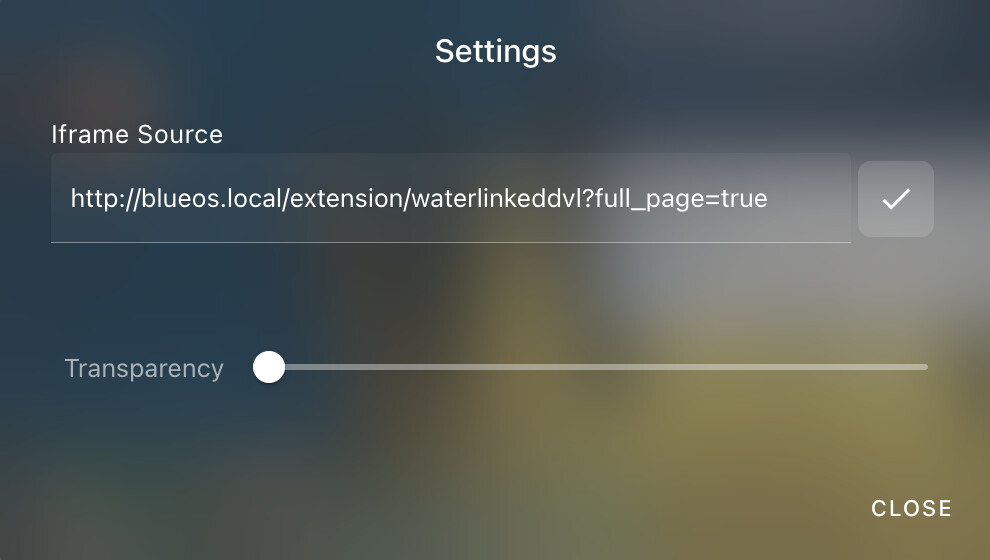
Configuration determines the URL to fetch the page from, as well as the overall transparency of the iframe:


Hi @rsheffield99 -
You can check if you’re using the right URL by putting it in a browser- it should load the dashboard. You find the dashboard link within your NodeRed flow, see the instructions here.
Tony, got the iframe to show up both in Cockpit and by pasting into my browser, see below for reference. The url used a /#flow/xxxx format rather than a /#node/xxxx format, but I could move and resize the overlay to show all the sensors, a map, and video all at the same time. I have a question about mission planning. Is there a replay option in Cockpit? I ran the following with QGC after our last run at the lagoon by playing the log file. Notice the arrow showing where the boat is relative to the mission/survey planned route. What I was talking about before was altering that icon so it would put out the water sensor values beside the icon. I haven’t made a run using Cockpit yet, but it is on my list of things to do. Will I get a similar icon that follows the mission route using GPS? Can it be modified?


Hi @rsheffield99 -
Cockpit does not have any log playback options like QGC, currently. You can visualize autopilot logs with the tool here, which will show vehicle position vs. sensor values (sent via named value float.) You could also print the messages to the autopilot console (as an appropriate message type) and view this message history in a pop-out widget positioned alongside the vehicle icon in the viewer.
Your iframe looks to be using the url for the Node red extension interface, not the dashboard! Did you install the plugin listed in those instructions from our Node-Red guide? You ideally want the url from the page that loads when you click the square with arrow to the upper right at the center right of this screenshot:

Tony,
Thanks,
My primary question is answered that I can’t do a playback with Cockpit. I’m assuming the log files are the same format/content, so I can use the QGC playback. That is quite useful.
I looked at the log viewer. I think I will want to print the messages to the autopilot console and view as a pop-out widget as you suggest. I’m working on verifying the sensors’ outputs are accurate/consistent first.
Yes, I installed per the guide. I’ll double check to make sure I got the url from the correct spot.
Hi @rsheffield99 -
I think only tlogs are possible to playback in QGC? I’ve never played any log back in QGC so not sure - the log viewer is far more useful in my opinion!
If you’re using Atlas scientific sensors, you may be setting the bar too high if you expect high accuracy / consistency…
QGC playback is pretty cool if you want to look at what you did. We have 4 separate sections of a single lagoon that we will do repeatedly as salt water is reintroduced to the bodies of water. The tlog works really well for that. Of course, the tlog fails to have the video in it, so capturing and synching that on playback is a requirement and why I want combined files for that.
I’m building out the mount for the four sensors and camera this week. Should know about how well they perform together soon. Keeping my fingers crossed for decent data.
Hi @rsheffield99 -
The autopilot log viewer has all the same functionality, and more - particularly the line graphs for parameters allow you to select a particular section of the mission, and see how the vehicle moved vs. what it was measuring. I strongly recommend giving it a try - I think graphing named value floats vs. time is a better option than periodic readouts to the autopilot console…
Here is an example - note how the attitude source and wingspan have been adjusted for better visibility:
